
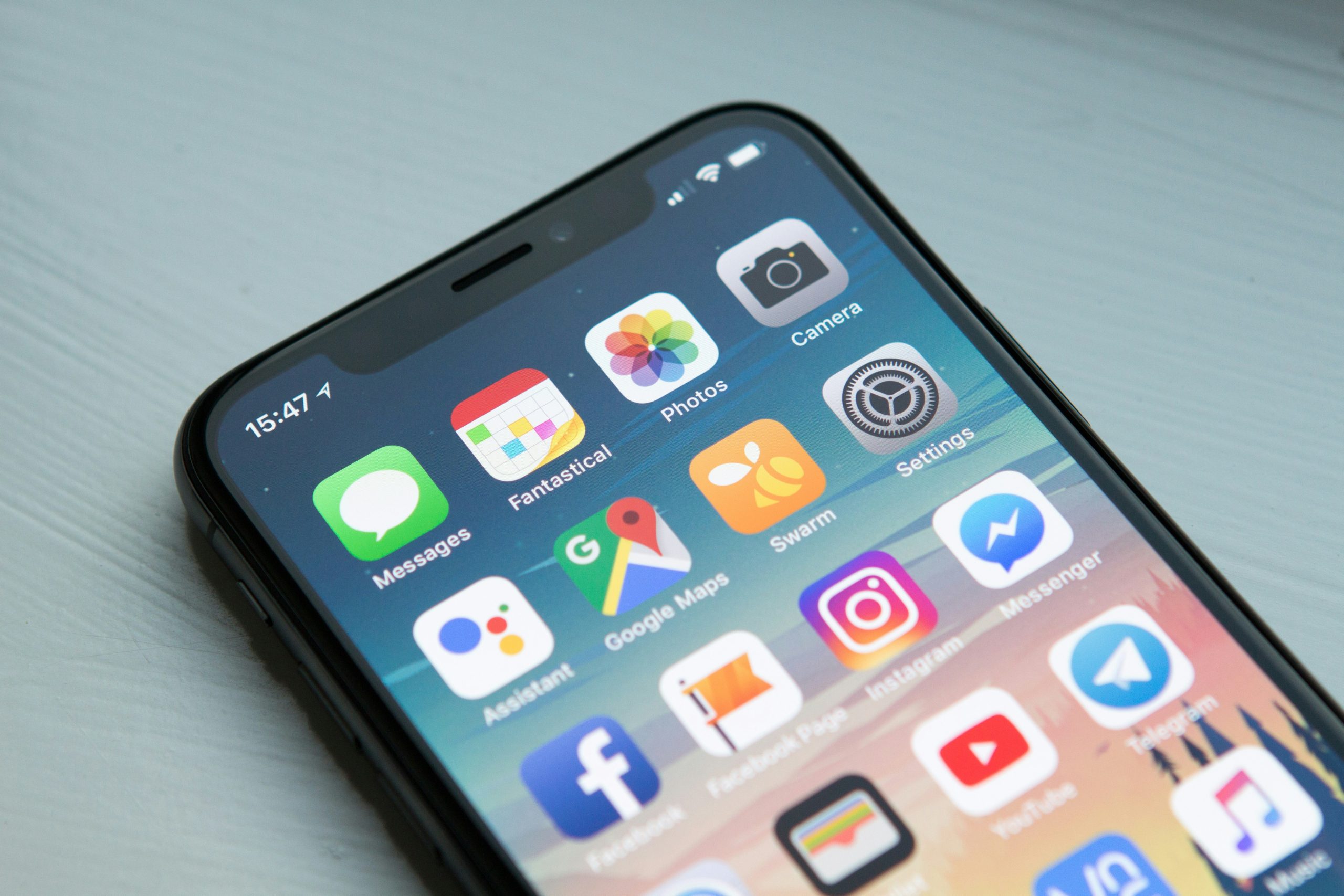
There’s nothing more frustrating than topping up your data only to watch it vanish in a few days. Before you blame the network, you might want to look at a few sneaky settings on your own phone!
Even if you buy the cheapest data bundles in the market from Bundlegram, poor usage habits can still eat through your allowance. Here are 5 simple, powerful tricks you can use today on any smartphone (Android or iPhone) to stop the data drain and make your bundle last longer than ever.

1. Limit Background Data
Your apps are working hard even when you’re not using them! Background app refresh allows apps like social media, news, and email to constantly fetch new information, sync files, and update feeds. This activity is the number one silent killer of mobile data.
The Fix: Go into your phone’s settings and restrict background data for non-essential apps. Set updates to “Wi-Fi Only.”
- On iPhone: Go to Settings > General > Background App Refresh and turn it off completely or restrict it for specific apps.
- On Android: Go to Settings > Network & Internet > Data Usage and restrict background data for individual, data-hungry apps.
2. Turn Off Video Auto-Play
Videos are, by far, the biggest data consumer online. Social media apps like Facebook, Instagram, and X (Twitter) automatically play videos as you scroll through your feed, instantly eating hundreds of megabytes without you even tapping a button.5
The Fix: Disable auto-play settings within your social media apps.
- Look for Settings (or Privacy/Data Usage) within the app and select the option to set Autoplay to “Never Autoplay Videos” or “Only on Wi-Fi.” This way, videos only load when you choose to click them.
3. Download, Don’t Stream: Prioritise Wi-Fi
The most basic rule of data saving is also the most effective: use Wi-Fi whenever possible. If you have access to a secure Wi-Fi network at home, work, or school, use it for your most data-intensive activities.
The Fix: Get into the habit of downloading media for offline viewing before you leave a Wi-Fi zone.
- Download your music playlists (Spotify, Apple Music).
- Download your favourite TV shows or movies (Netflix, YouTube Premium).
- Download offline maps (Google Maps) before travelling to a new area.

4. Activate Your Data Saver Mode
Most modern smartphones and browsers come equipped with built-in data-saving features that automatically optimise your usage by compressing images and reducing the quality of media displayed.
The Fix: Turn on your phone’s system-wide data saver.
- On Android: Go to Settings > Network & Internet and turn on Data Saver.
- On iPhone: Go to Settings > Cellular (or Mobile Data) > Cellular Data Options and enable Low Data Mode.
- Bonus Tip: Enable the data saver or “Lite Mode” setting within high-traffic apps like Chrome, YouTube, and TikTok to reduce streaming quality when on mobile data.
5. Cloud Syncs and App Updates
Cloud storage services (like Google Drive, Google Photos, or iCloud) and your phone’s App Store are notorious for initiating massive data transfers without warning. They often start syncing or updating large files the moment your phone detects an internet connection, be it Wi-Fi or your mobile data.
The Fix: Schedule these activities to happen only when you are on a free, reliable Wi-Fi network.
- Go into your App Store/Play Store settings and set “Auto-update apps” to “Over Wi-Fi only.”
- Similarly, go into your Google Drive, Dropbox, or iCloud settings and ensure “Use Mobile Data for Backups/Syncing” is toggled OFF.
Ready to put these tricks into practice? Log in to Bundlegram now to purchase your next discounted data bundle for MTN, Glo, Airtel, or 9Mobile and see how long you can make it last!